Several cameras, several cards
Clips from a second memory card of one camera are joined by their recording time.
Poly Sync Studio lines up your clips by listening to them, then writes an XML timeline for your editor.
Windows 10 and 11, 64-bit · Premiere Pro, DaVinci Resolve, Final Cut Pro 7 · $10, one-time
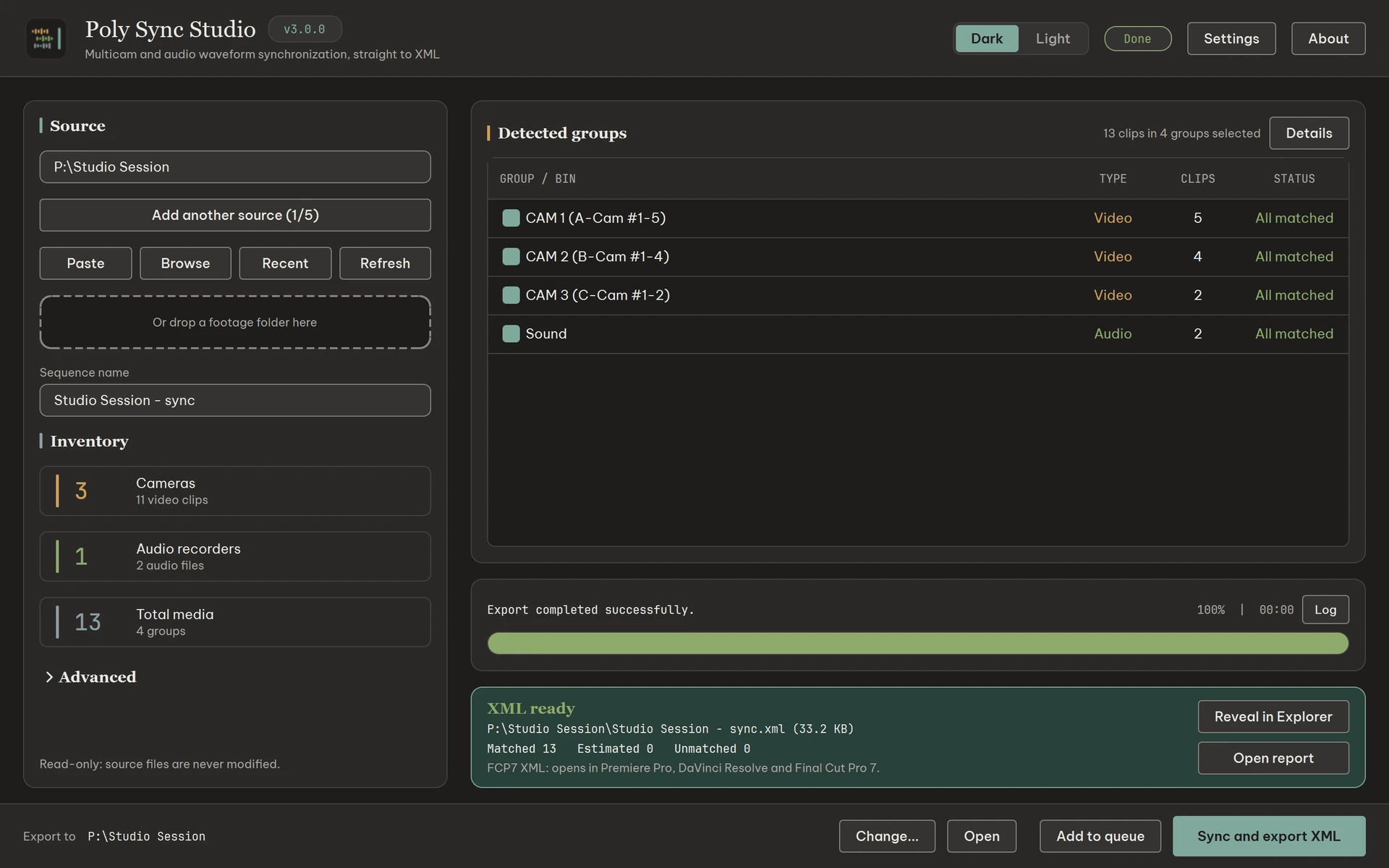
Camera and recorder files are detected and grouped. Untick, rename or merge groups before you sync.
Clips are aligned by their sound. Your source files are only read.
Open it in Premiere Pro, DaVinci Resolve or Final Cut Pro 7 and start cutting.
Clips from a second memory card of one camera are joined by their recording time.
Each channel of a recorder file gets its own audio track in the XML.
Use up to 5 source folders in one job, and line up more jobs in the batch queue.
Source files are never modified. The app writes new XML and report files.
Every file is listed with its result and position, in the app and in a report.
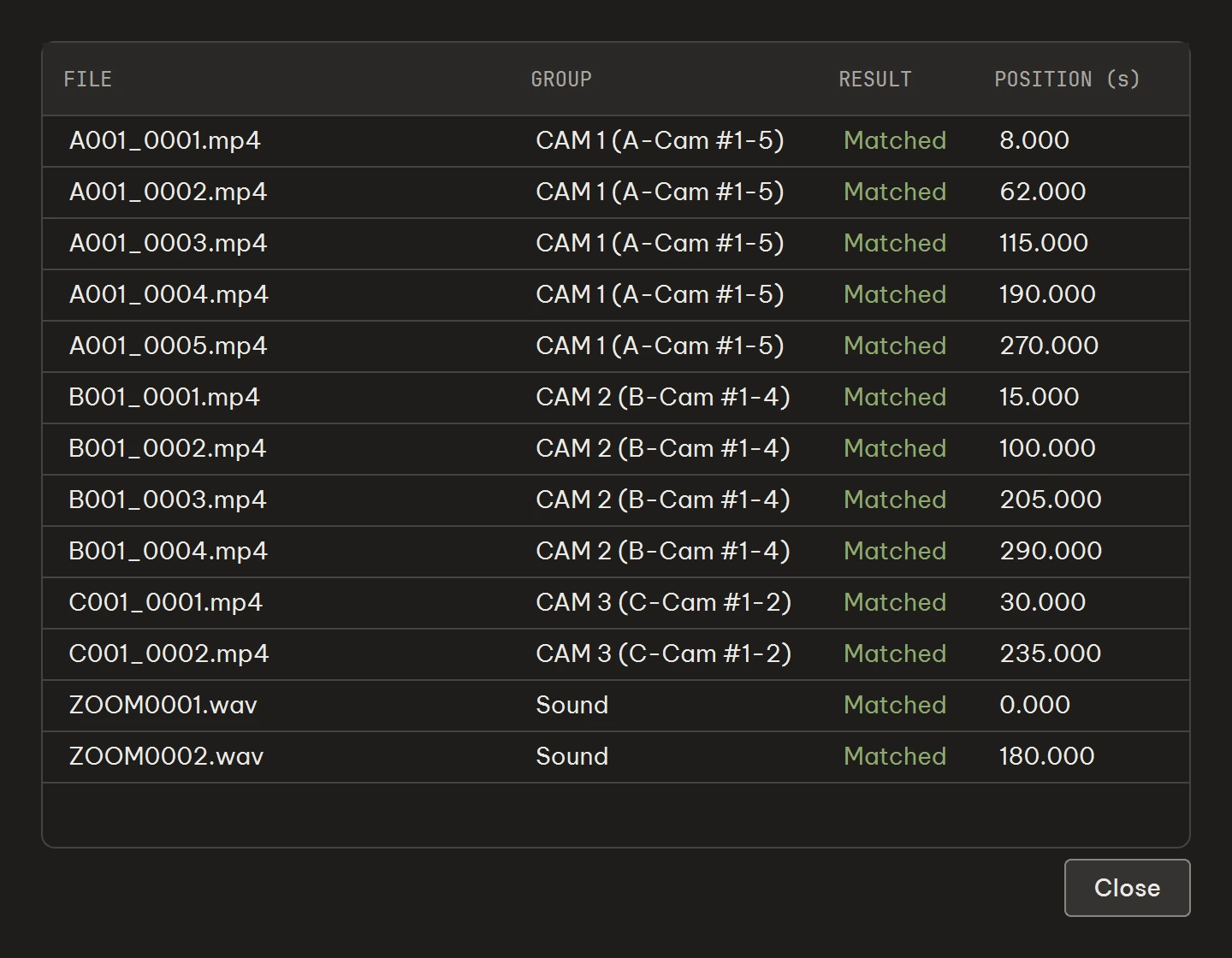
Version 3.0.0 for Windows.
Checkout and receipts are handled by Gumroad. Your license key is on the receipt.
Download the zip file from your Gumroad receipt, extract it, run the setup file, start the app and enter your license key.
The setup file is not code-signed yet, so Windows SmartScreen may show this warning. Choose “More info”, then “Run anyway”.
One license key activates the app on up to 2 computers. Moving to a new PC? Deactivate the old one in Settings, or remove it from the activation screen on the new PC.
After activation, yes. The app checks the license when it can and keeps working for up to 30 days without reaching the license service.
No. Your footage and project data are never sent. For the license check the app sends the product name, your license key, a one-way hash that identifies the computer and the computer's name.
Write to [email protected] with your order number.